ServiceNow AI Agent Studio Setup
Connect CMDB Compass to ServiceNow AI Agent Studio so your agents can audit, remediate, and govern your CMDB using natural language. This guide walks through the full setup in about 5 minutes.
Prerequisites
- A CMDB Compass account with at least one connected ServiceNow instance
- ServiceNow Zurich or later with AI Agent Studio enabled
- Admin or ai_agent_admin role in ServiceNow
Setup Guide
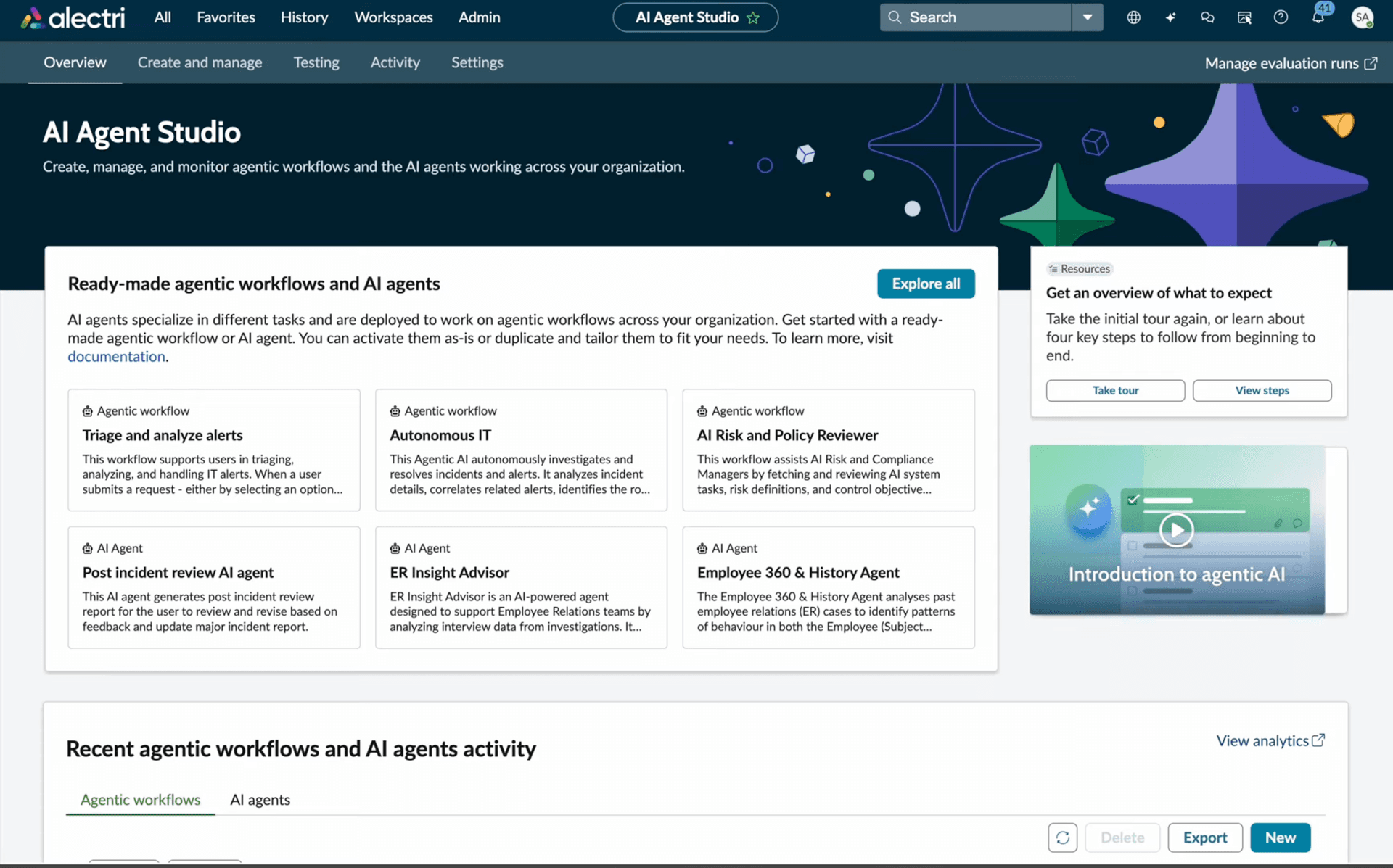
1Open AI Agent Studio
In ServiceNow, navigate to AI Agent Studio. You'll see the landing page with ready-made agentic workflows and AI agents.
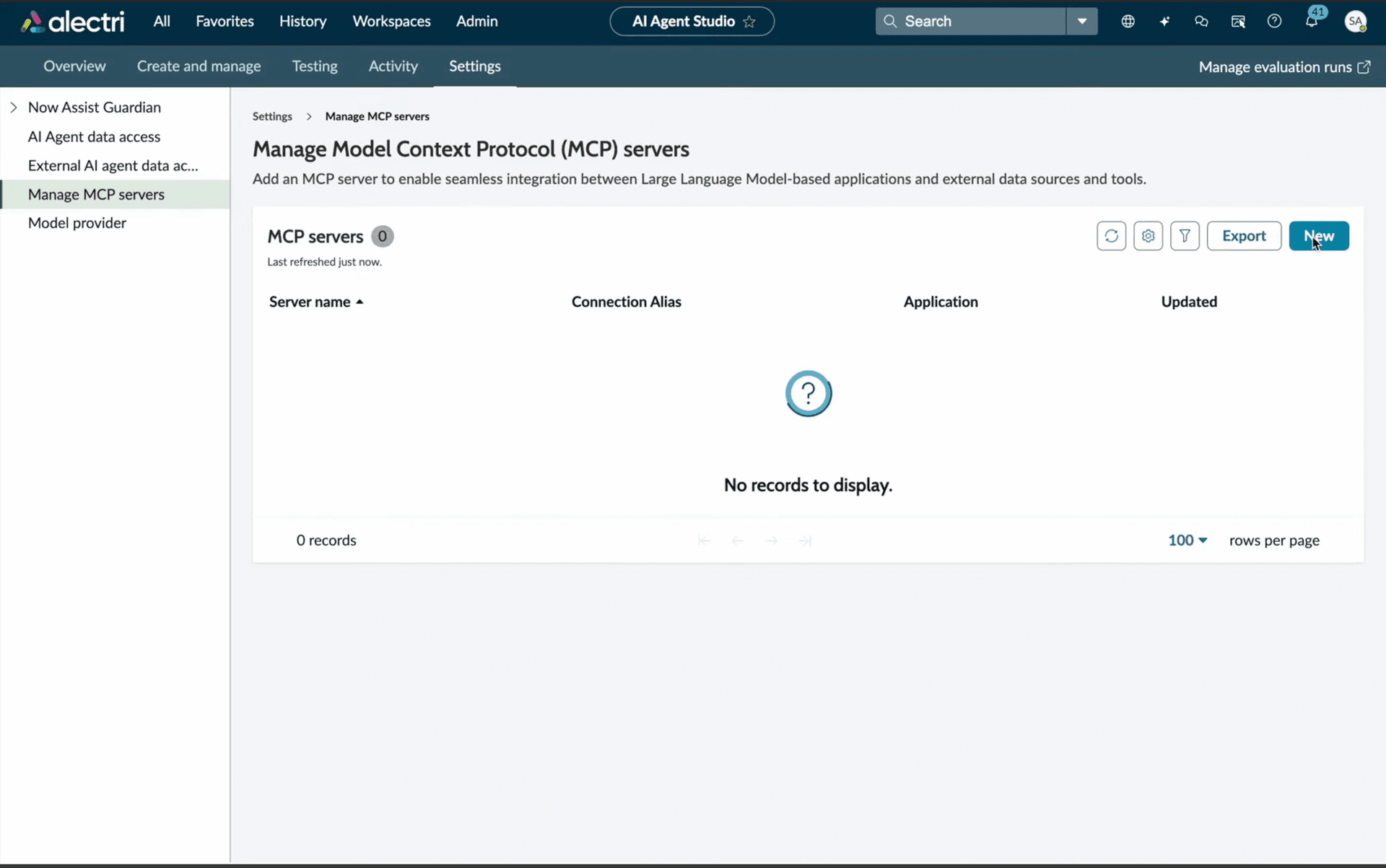
2Go to Manage MCP Servers
Click Settings in the top navigation, then select Manage MCP servers from the left sidebar.
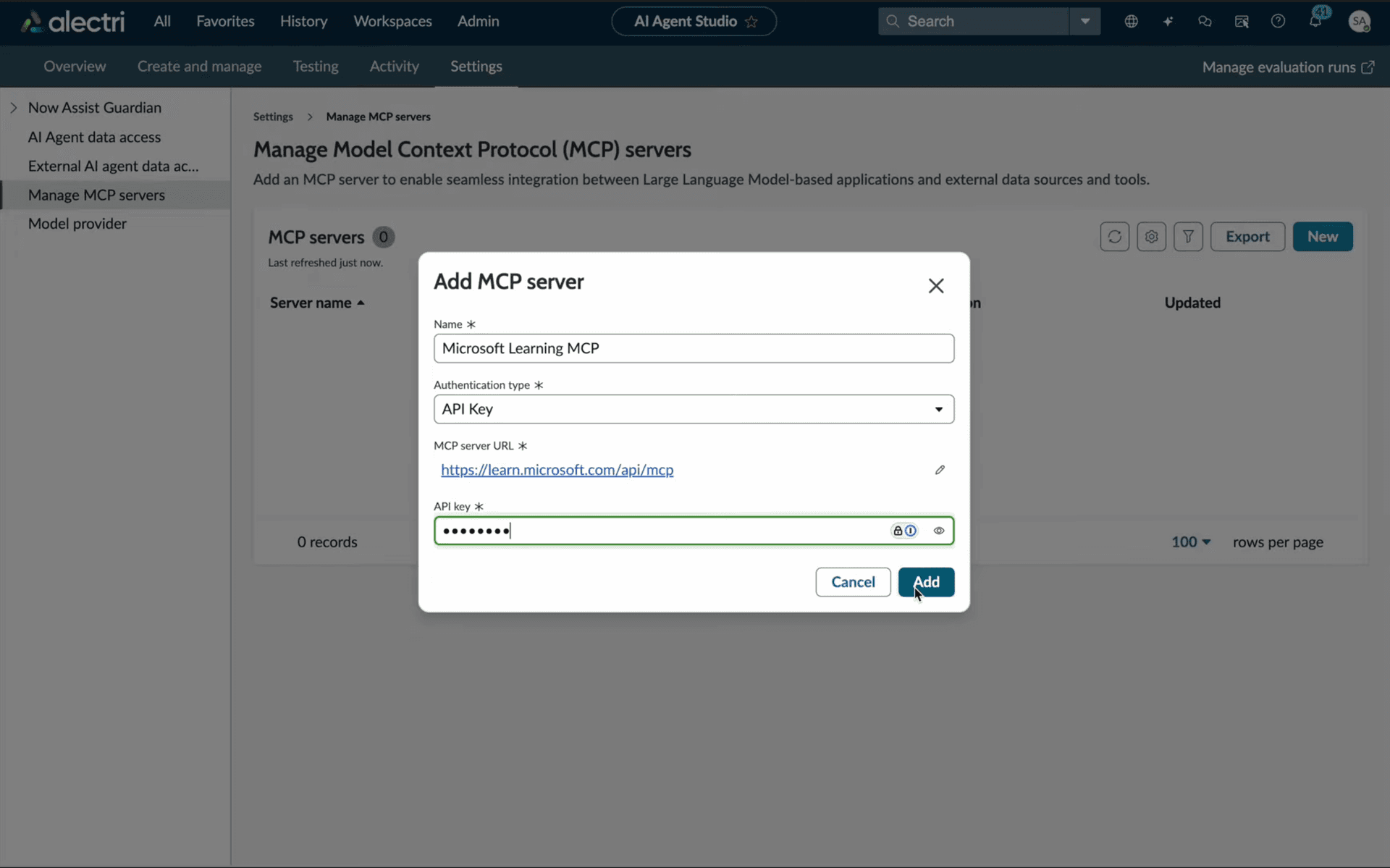
3Add CMDB Compass as an MCP Server
Click New to open the “Add MCP server” dialog. Enter the following values:
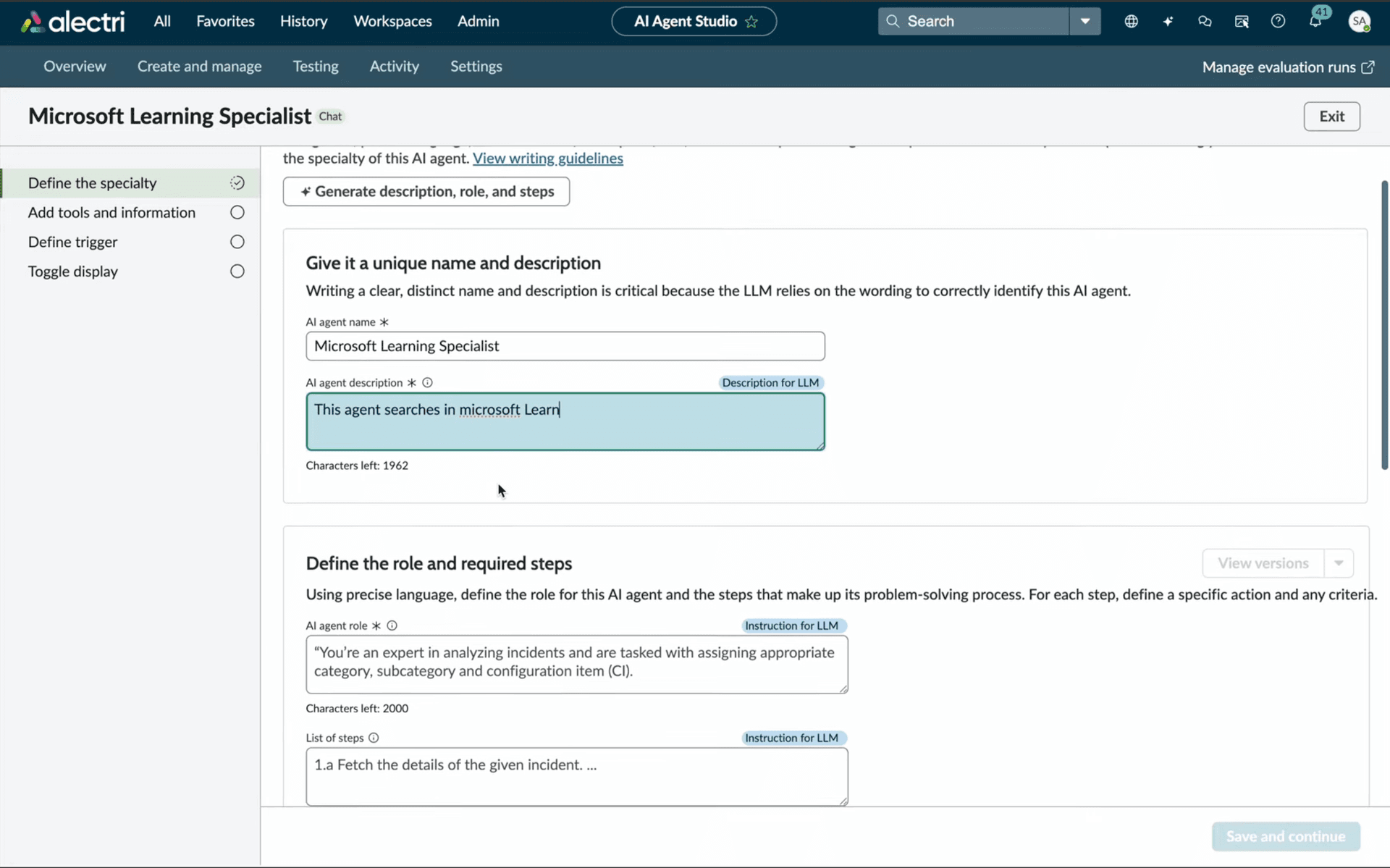
4Create an AI Agent
Go to Create and manage and create a new AI Agent. Give it a name, description, and define its role and steps. For example: “You're an expert in analyzing CMDB health and are tasked with auditing configuration items.”
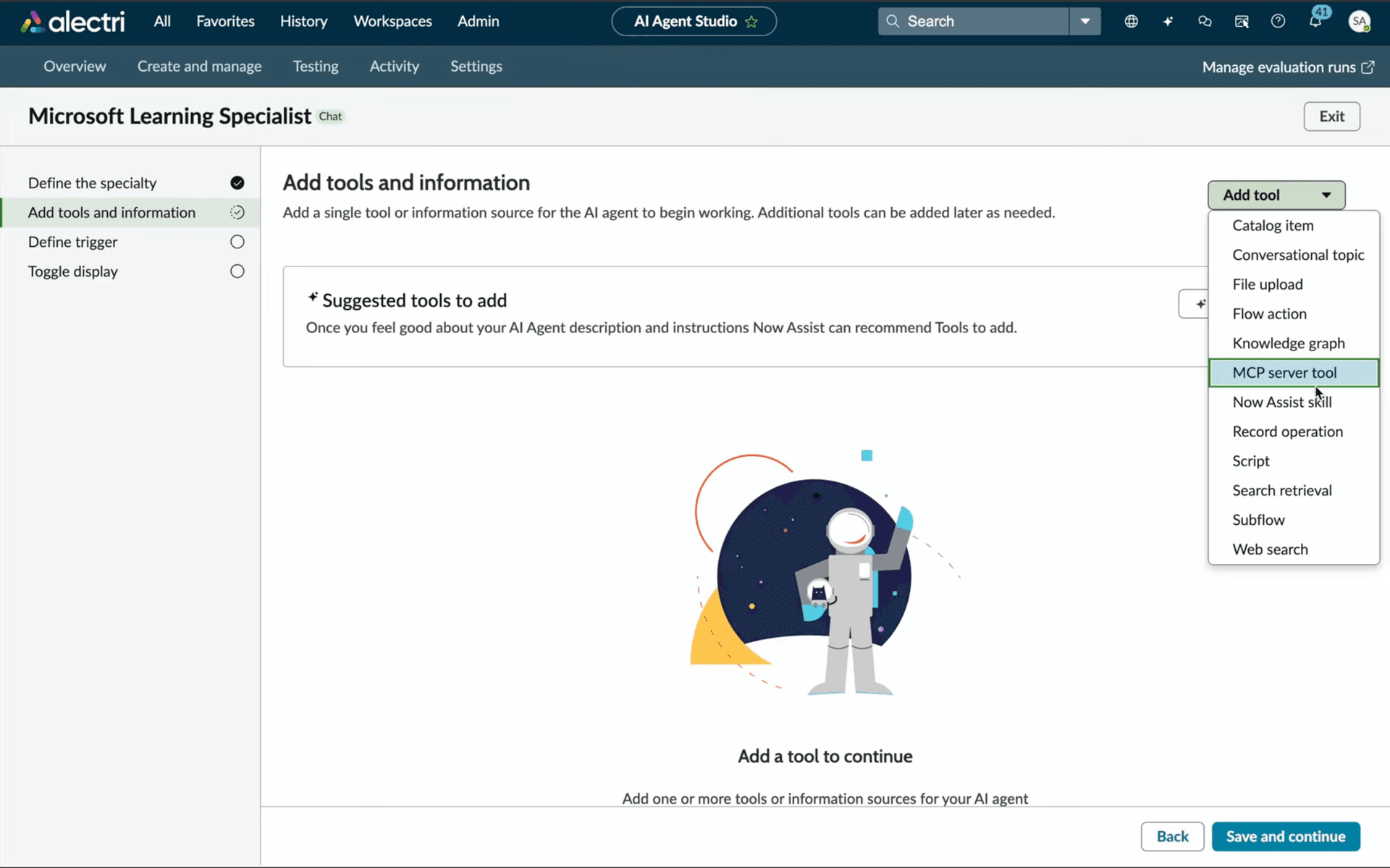
5Add CMDB Compass Tools
In the Add tools and information step, click Add tool and select MCP server tool from the dropdown. Choose the CMDB Compass MCP server you added in Step 3.
6Test Your Agent
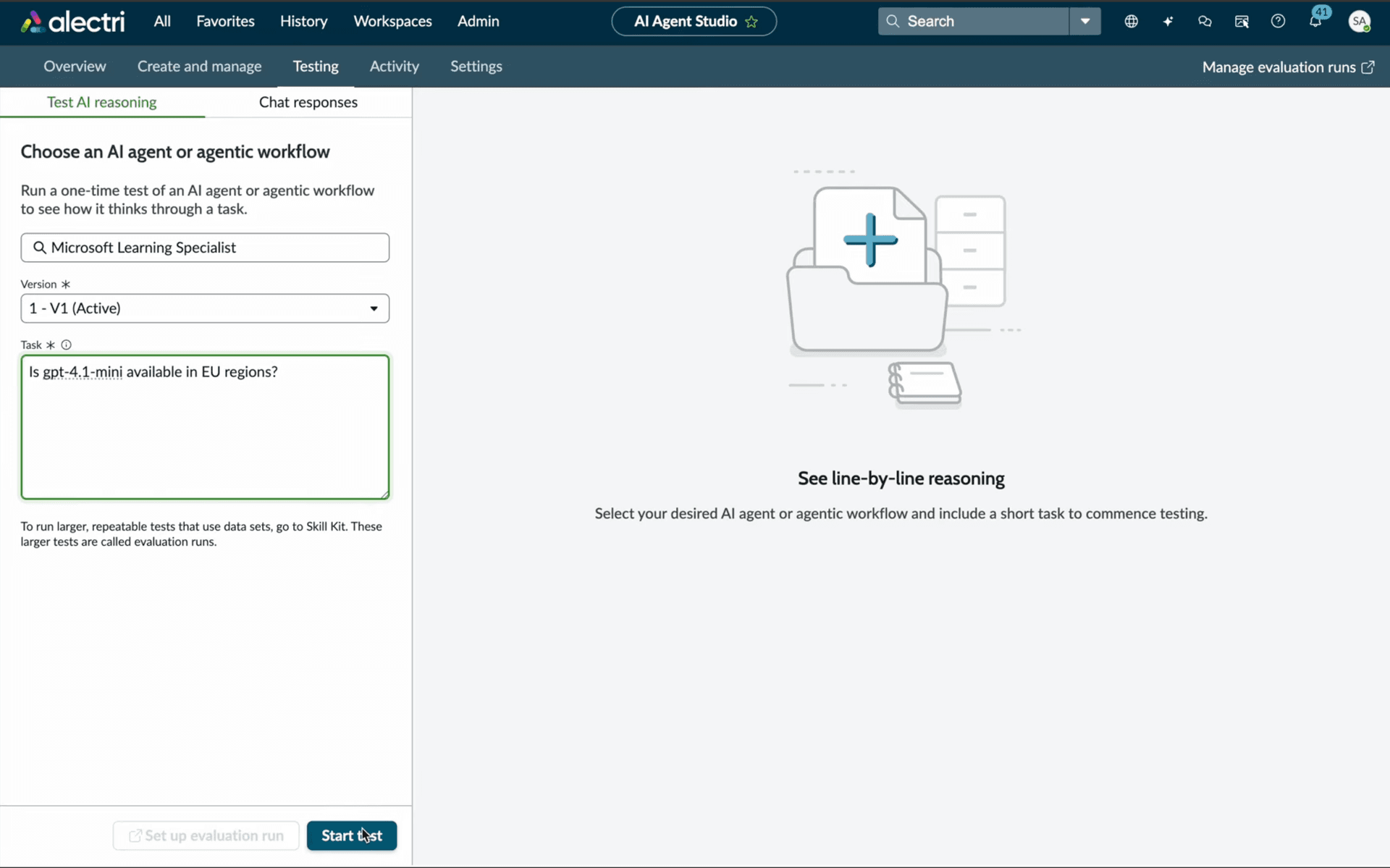
Go to the Testing tab, select your agent, and enter a task to test. Try something like:
"What's the health score of our CMDB?"
"Find duplicate CIs in cmdb_ci_server"
"Check CSDM compliance for our service offerings"
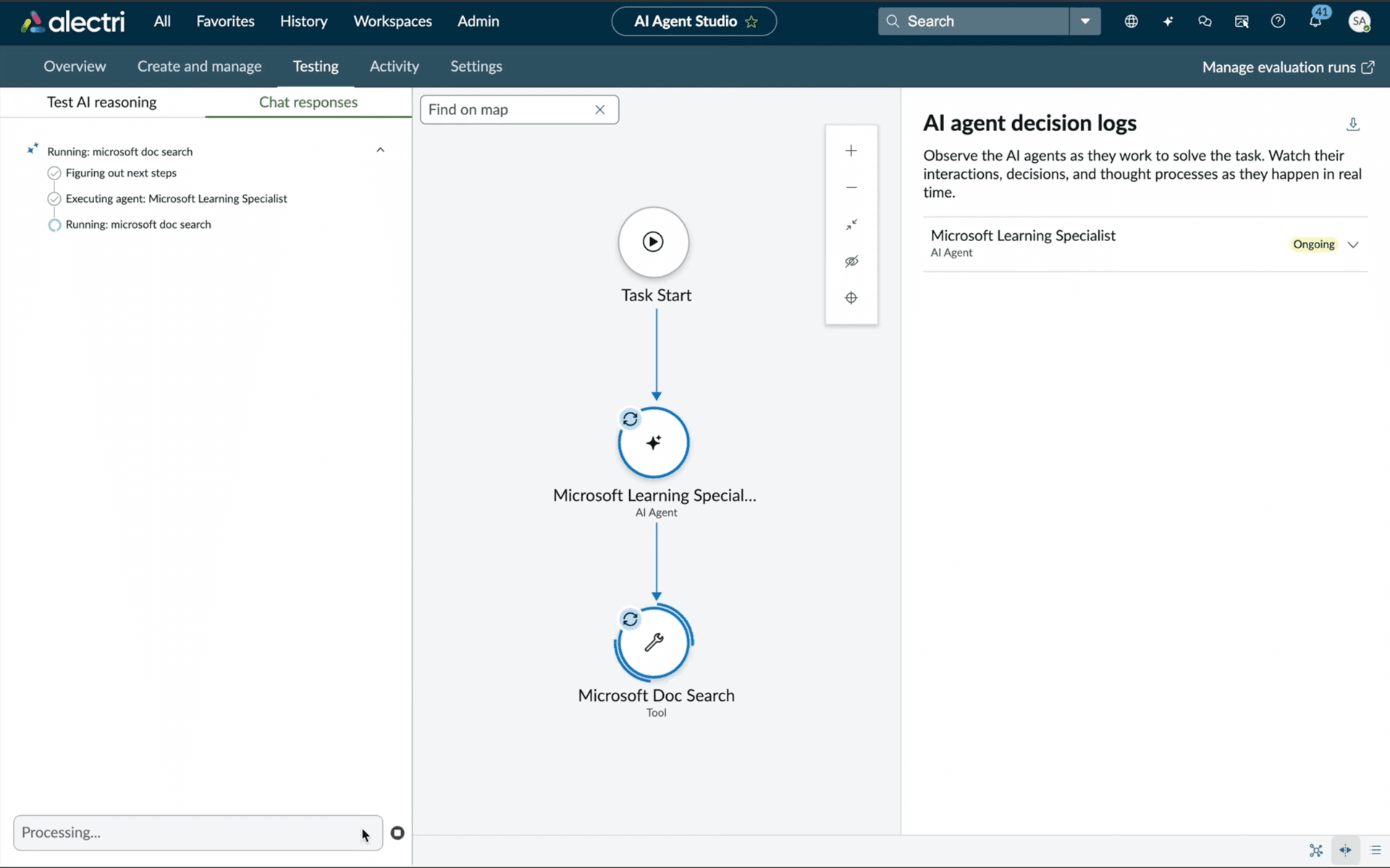
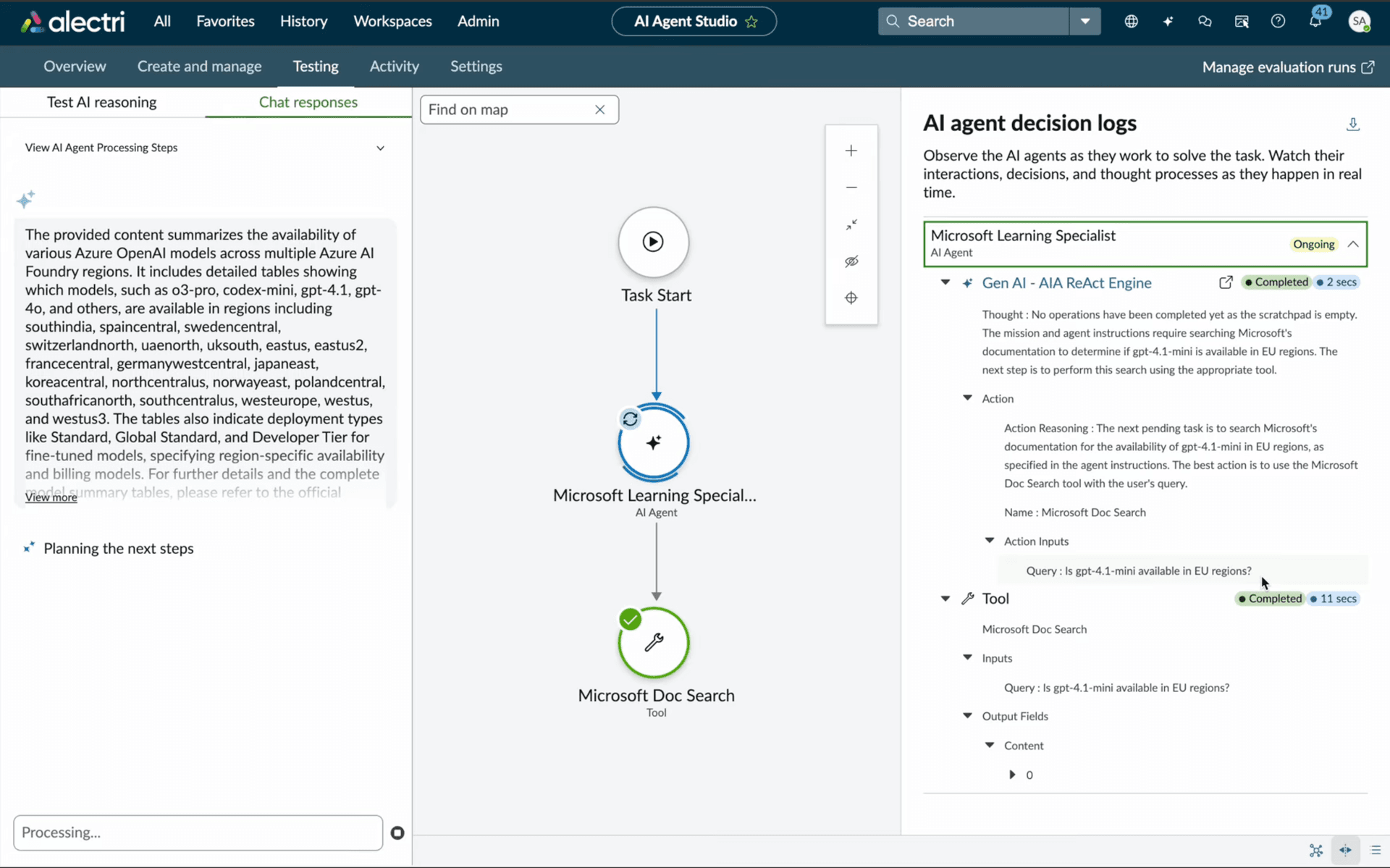
7Watch the Agent Reason
The decision logs show the agent's live execution graph — from task start, through reasoning, to tool execution. You can see exactly how it processes your request.
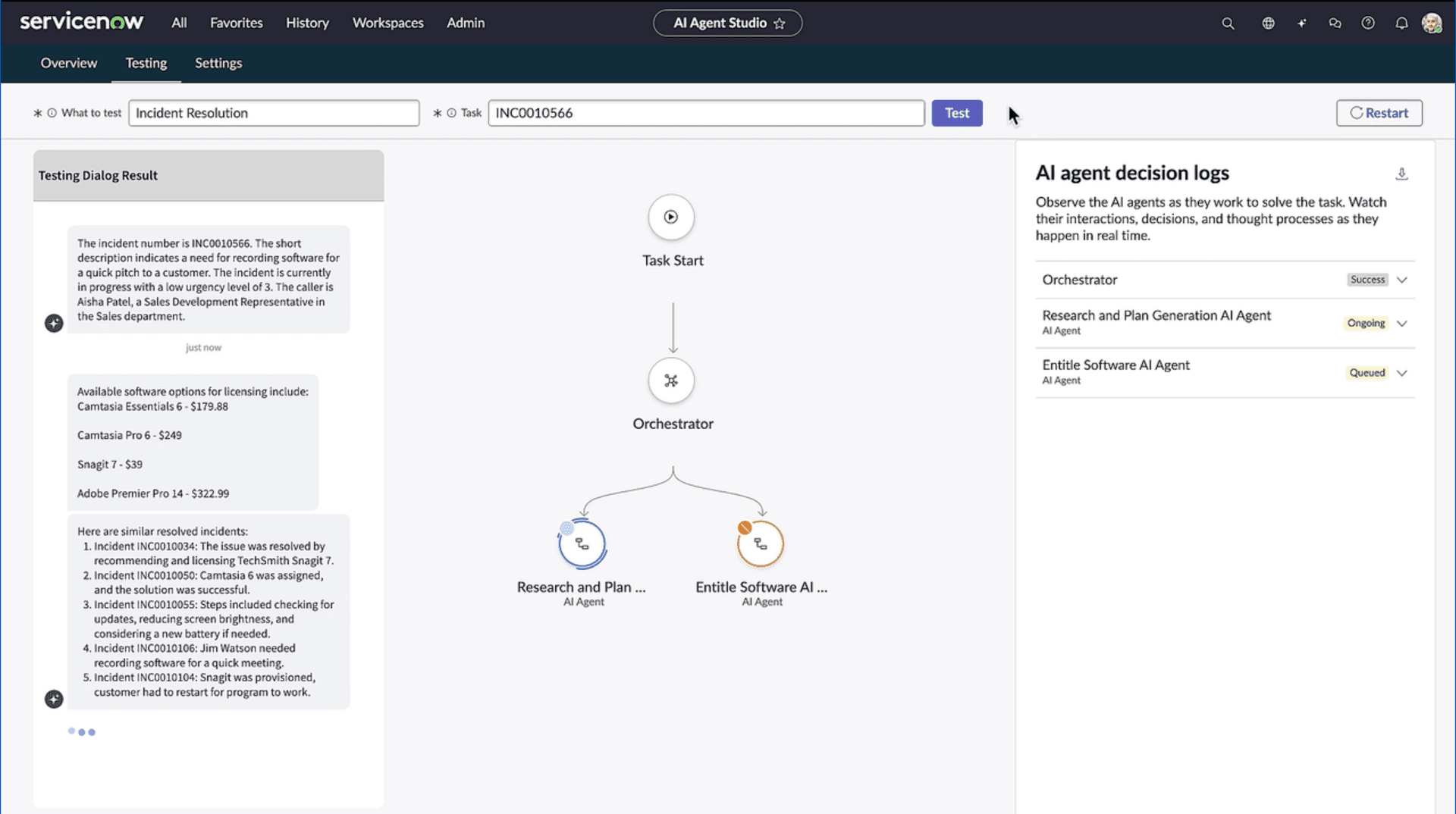
8Multi-Agent Orchestration
For complex tasks, ServiceNow's orchestrator can coordinate multiple sub-agents — each using different CMDB Compass tools to research, plan, and execute.
9Review Tool Execution
Drill into any tool execution to see the full action inputs and outputs. Every call is logged with the exact query, parameters, and results returned.
Troubleshooting
OAuth connection fails
Verify the Client ID and Client Secret are correct. Credentials can only be viewed once — if lost, regenerate them from the Configure tab.
Agent cannot discover tools
Ensure the MCP Server URL is https://api.cmdbcompass.com/mcp (not /sse). Check that your CMDB Compass account has at least one connected ServiceNow instance.
Write operations fail
Write capabilities (merge, bulk update, remediate) require a Pro plan or above. Starter accounts are read-only. Upgrade your plan.
Need help? Contact us